
Microsoft has recently announced that File Explorer will now automatically disable the Preview feature for all files downloaded from the internet, and display a message – The file you are attempting to preview could harm your computer. This change will apply to the computer systems that have installed Windows security updates released this month. This will enhance the security of users’ computers.
File Explorer will now automatically disable the Preview feature
To protect users’ computers from a vulnerability that could expose NTLM hashes when previewing potentially unsafe files, File Explorer will now disable the preview for files downloaded from the internet.
NTLM hash leakage might occur if a user previews files containing HTML tags that reference external paths. Cybercriminals could exploit this preview feature to capture the sensitive credentials.
The file you are attempting to preview could harm your computer
When you download a document from the internet, an attribute MotW (Mark of the Web) is added automatically to that document. This shows Windows that the file is downloaded from the internet.
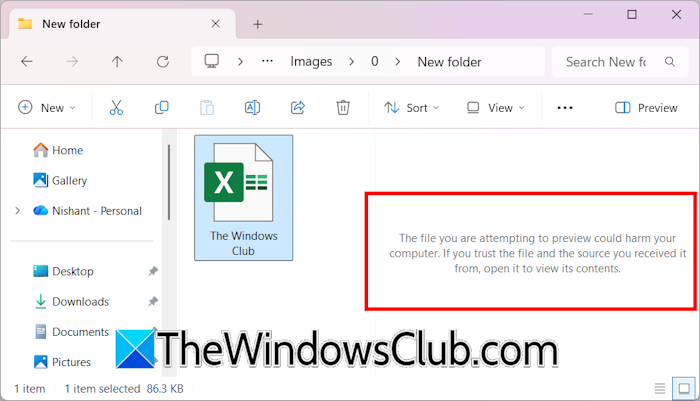
If you have installed Windows Security updates released on or after 14th October 2025, you cannot preview such files in File Explorer. If you try to preview such documents, you will see the following message:
The file you are attempting to preview could harm your computer. If you trust the file and the source you received it from, open it to view its contents.
How to disable this message and preview files downloaded from the internet?
If you want to preview the files downloaded from the internet, you have to override this behaviour for that file. The steps to do this are as follows:
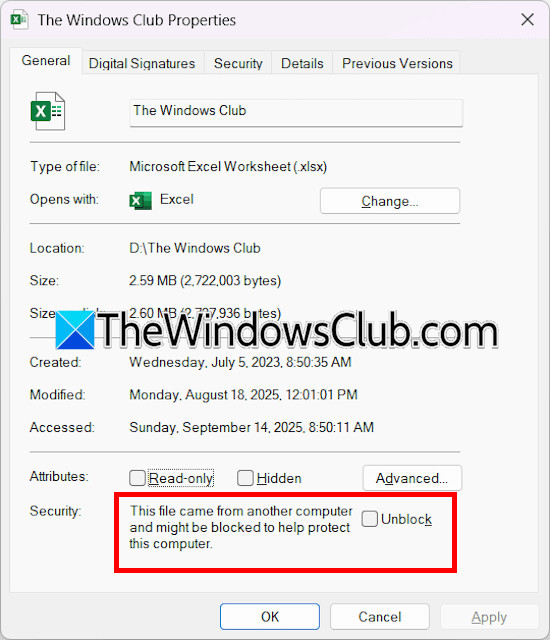
- Right-click on the file.
- Select Properties.
- Under the General tab > Security and select the Unblock checkbox.
- Click Apply, then click OK.
Be careful when unblocking the file, as previewing it could harm your computer.
To remove the block for files on an Internet Zone file share, use the Internet Options control panel’s Security tab to add the file share’s address to either the Local intranet or Trusted sites security zone.
Microsoft suggests unblocking the file only if you trust its source or sender. Additionally, you cannot undo changes once you unblock the file.
