
Microsoft has added a useful feature to Microsoft Edge. Microsoft Edge now allows you to sign in with a Google account. The “Profiles” feature in a web browser is important because it saves users’ browsing data, bookmarks, and extensions to the cloud. Like Chrome and Firefox, Microsoft Edge also has this feature. Previously, this feature was limited to use with Microsoft accounts. But now, users can sign in to their Edge Profiles with their Google accounts.
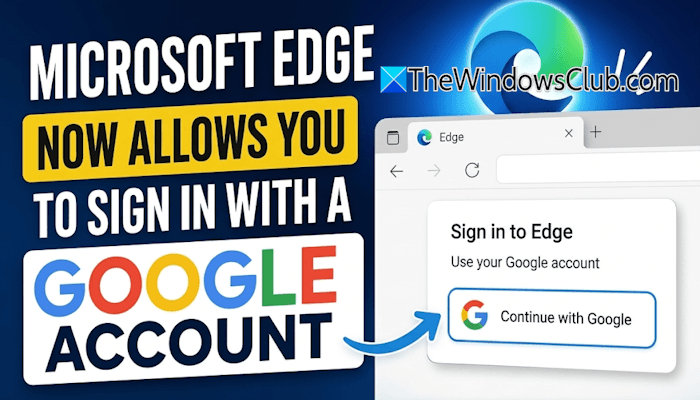
Microsoft Edge now allows you to sign in with a Google account
The biggest benefit of the Profiles feature in a web browser is that all your bookmarks, browsing history, and extensions remain synced across devices. Simply sign in with the same account on another device, and your profile will be available there, allowing you to continue browsing with all your settings and data intact. Previously, Microsoft Edge required users to sign in with their Microsoft account to save their browser data to the cloud. As a result, users who only had a Google account couldn’t sign in to Edge directly. They first had to create a separate Microsoft account before they could enable profile syncing and access their browser data across multiple devices.
Microsoft Edge now allows you to sign in with a Google account. There is no need to create a separate Microsoft account to use Edge. However, all your bookmarks, extensions, and browsing history will be saved to the Microsoft servers. This means that signing in to Edge with a Google account does not sync your Chrome browser data with Microsoft Edge. The sign-in with Google option will only authenticate your identity.
Says Microsoft:
Users can now sign in to Microsoft Edge using a Google account in addition to a Microsoft account from the profile menu and Edge sign-in screen. Available for Windows and macOS devices. Admins can control availability of this feature using the NonMicrosoftAccountSignInEnabled policy.
How to enable the Sign in with Google option for Edge Profiles
The Sign in with Google option does not remain available in Edge by default. You have to enable this feature through Edge Flags. Follow these steps:
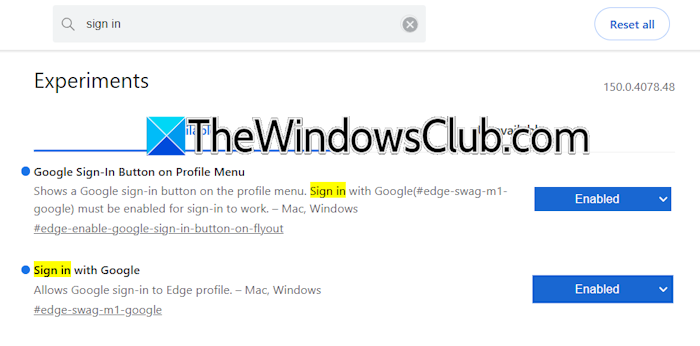
- Open a new profile in Edge or create a new one.
- Visit edge://flags.
- Type sign in in the search box.
- Select Enabled in the following two drop-downs:
- Google Sign-In Button on Profile Menu
- Sign in with Google
- Relaunch Edge to apply changes.
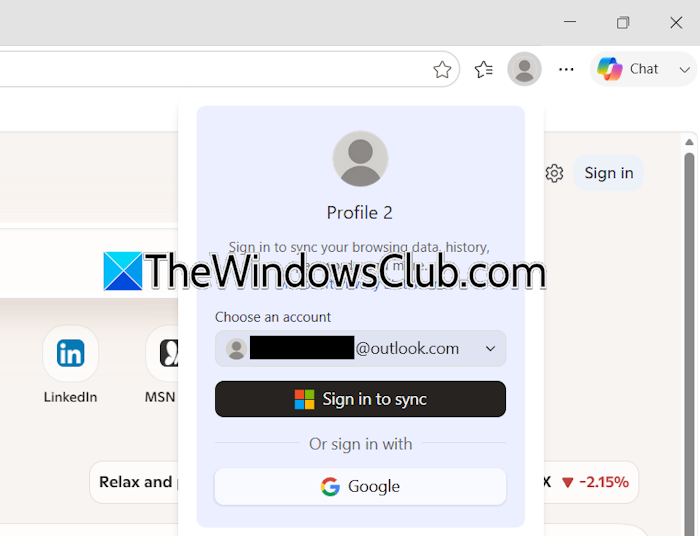
Now, click on your profile icon. You will see the Sign in with Google option there. Select it and proceed with the on-screen instructions.
Once you set up your Edge profile with your Google account, Edge will start saving all your bookmarks, extensions, and browsing data to the cloud for that account.
How to sign into Microsoft Edge with a Google account
Hope this helps.
