
Microsoft has quietly pushed a new OneDrive Photos app to Windows 11 users, and most of them are unaware of it. I was surprised to find it in Windows 11 search results while searching for the Photos app. Since I did not install it on my system, it might have installed through a Windows Update or an update for the OneDrive app for Windows 11. In this article, we will learn about the OneDrive Photos app, its features, and how to remove it, if you wish to.
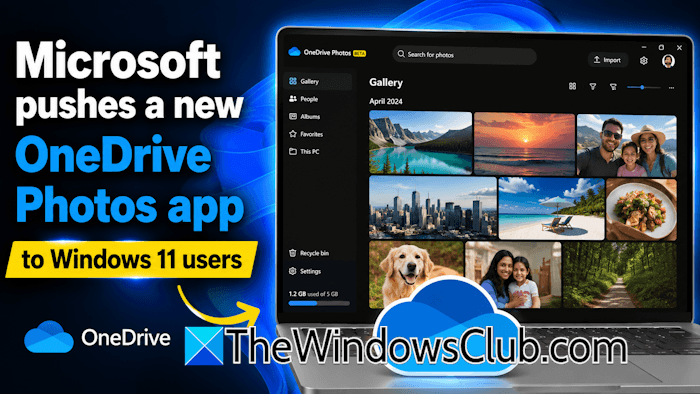
Microsoft pushes OneDrive Photos app to Windows 11 users
If the OneDrive Photos app exists on your PC, it will appear in your search results when searching for the “OneDrive Photos”. To find out how it gets installed, I checked another Windows 11 laptop that did not have OneDrive installed. When I searched, I found that the OneDrive Photos app was not present there. However, as soon as I installed OneDrive, the OneDrive Photos app was also installed alongside. This confirms that the OneDrive Photos app is now bundled with OneDrive for Windows 11 and is installed automatically when installing OneDrive.
What is the OneDrive Photos app used for?
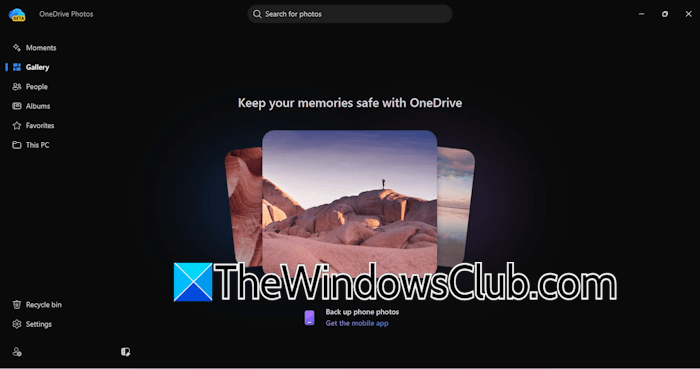
OneDrive Photos app is a new photo management app for Windows 11. You can use it to view and organize cloud and local images. You will see the interface shown in the above screenshot when you launch it. It lets you view all your photos synced with OneDrive in one place. When you sign in to the OneDrive app, all your photos saved to the cloud will appear in this app.
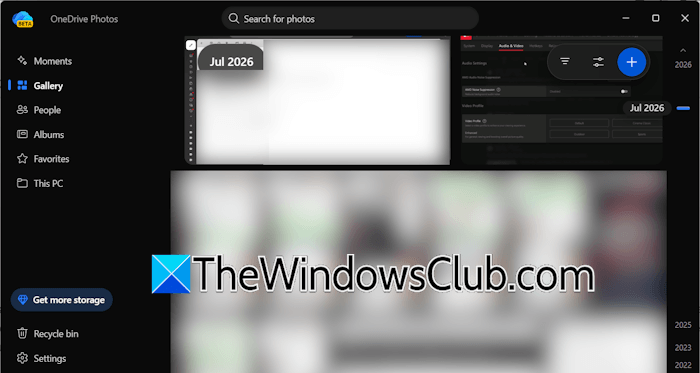
The left pane shows several useful options, including Moments, Gallery, People, Albums, Favorites, and This PC. The This PC section shows local images. Gallery shows all the photos saved to the cloud along with the timeline. These photos also include screenshots. It is a useful feature as it lets you quickly find images from a specific month or year.
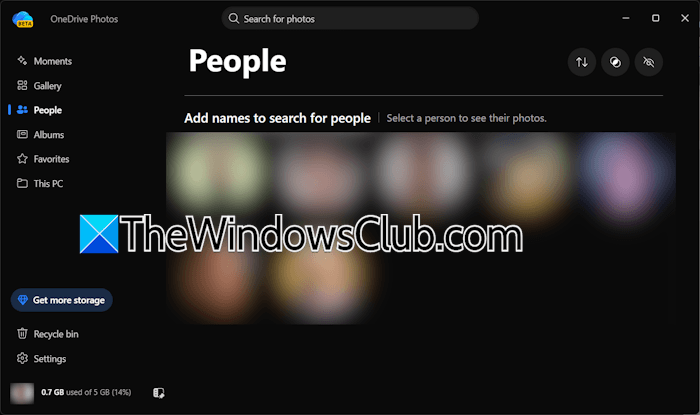
People is a new, powerful AI feature that can scan faces. When I clicked the People section, I was amazed to find that the app had already identified photos of my family members and friends and grouped them accordingly without any manual setup. When I clicked on a particular face, the app instantly displayed all the photos of that person from my collection. You can manually add the person’s name to the People group.
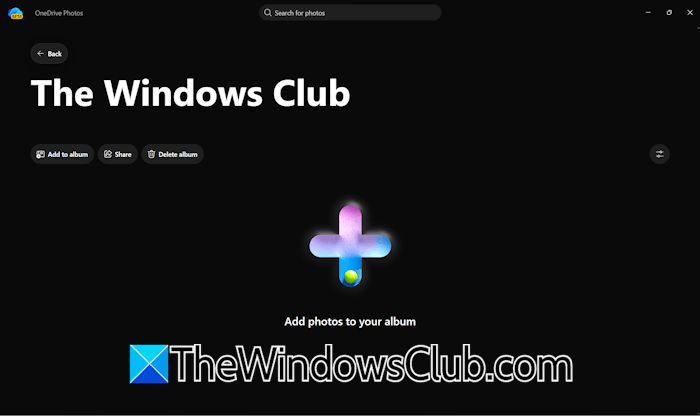
You can also create multiple albums in the app to organize your photos into different categories, such as family, vacations, work, or events. The app also allows you to share your albums with others through apps such as WhatsApp, Facebook, Outlook, Gmail, and more. You can also generate a shareable link for your albums.
How to uninstall OneDrive Photos app
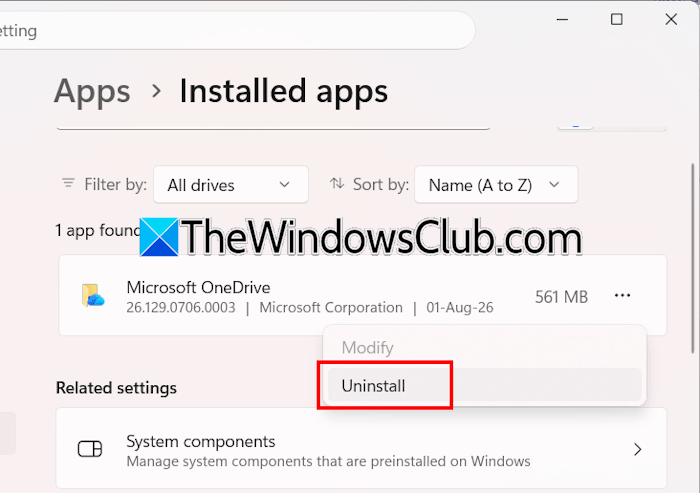
You cannot uninstall the OneDrive Photos app separately on Windows 11 as it is bundled with the OneDrive sync client. The only way to fully remove it is to uninstall the OneDrive app itself. Open Windows 11 Settings and navigate to Apps > Installed apps. Search for the OneDrive app and uninstall it. However, if you wish to delete its shortcut, simply right-click the icon and choose Delete.
I hope this helps.
