
Microsoft officially released Windows 11 26H2 for all users. You can install it via Windows 11 Settings. With Windows 11 version 26H2, Windows Settings are now backed up by default on all eligible enterprise devices. This feature makes it easier to restore your settings and preferences when you move to a new computer. This article covers the important highlights of the Windows settings backup and restore feature for Enterprise edition.

Windows settings are now backed up by default
Windows settings backup and restore is an enterprise-grade feature designed to streamline device transitions by securely preserving user settings and Microsoft Store app configurations. Previously, this feature was known as Windows Backup for Organizations. With Windows 11 26H2, Microsoft renamed it Windows settings backup and restore. This feature remains enabled by default on devices starting with Windows 11, version 26H2.
The objectives of this feature are to
- Help organizations accelerate PC refresh cycles, transition to Windows 11, or deploy AI-powered PCs.
- Allow organizations to adopt a cloud-first approach to managing devices and user settings.
The backup task is scheduled to run automatically every eight days, during which it backs up user settings, preferences, and the list of installed Microsoft Store apps. However, users can also initiate the backup manually by searching for the Windows Backup app in Windows Search and selecting Back up. Microsoft has not fully automated the restore process. It still remains under the administrator’s control.
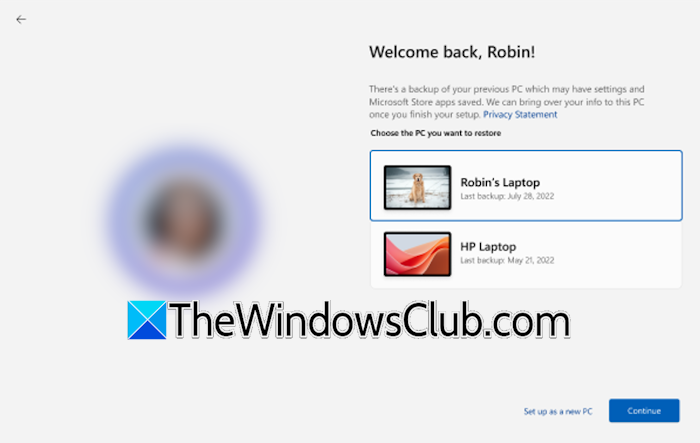
Administrators can initiate the restore process during device enrollment in OOBE or during the first sign-in after the device completes enrollment. Microsoft states that administrators must enable the restore policy through Group Policy or MDM. Once enabled, users can restore a previous backup during OOBE or during their first sign-in with their Microsoft Entra ID account after device enrollment.
Admins can manage Windows settings backup policies through Group Policy (GP) or MDM (such as Microsoft Intune). To ensure Windows settings backup works as expected, do not set the EnableActivityFeed, PublishUserActivities, UploadUserActivities, EnableCDP, and AllowConnectedDevices policies to their default values.
For detailed information on Windows settings backup and restore, visit the official Microsoft website.

Leave a Reply