
Approximately 145 browser extensions have turned malicious, affecting over 4.3 million users worldwide. All these affected extensions were distributed through the Chrome Web Store and the Microsoft Edge Add-ons Store. This threat is the outcome of a browser extension campaign running for the last 7 years. This article explains how these popular Chrome and Edge browser extensions go rogue.

Popular Chrome, Edge browser extension goes rogue
A team of cybersecurity researchers at Koi has recently uncovered a sophisticated malware campaign that affected millions of Chrome and Edge users through browser extensions. According to the researchers, a cybercriminal group, ShadyPanda, is responsible for this browser extension attack.
The group has been active since 2018 and launched its first campaign in 2023. That was their first attack, but not very complex. In 2023, they did something called Affiliate fraud. In Affiliate marketing, the person who shares his/her affiliate link earns a small commission on every sale of the product. Affiliate fraud occurs when a hacker injects a malicious tracking code into a web browser. In this fraud, the commission reward goes to the hacker instead of the person who actually put effort into promoting the product.
Inserting malicious code into an existing extension is easier than uploading a new extension to Chrome because Google reviews new extensions more carefully than updates to existing ones. This is what ShadyPanda learned in its 7-year-long campaign.
Clean Master and WeTab are among the extensions that researchers have reported as malicious.
How to check if you have installed malicious browser extensions
You should immediately check if your browser has any of these malicious extensions. Koi’s official blog post includes the complete list of affected extensions. However, the researchers did not disclose the extension names. Instead, they shared the extensions’ IDs.
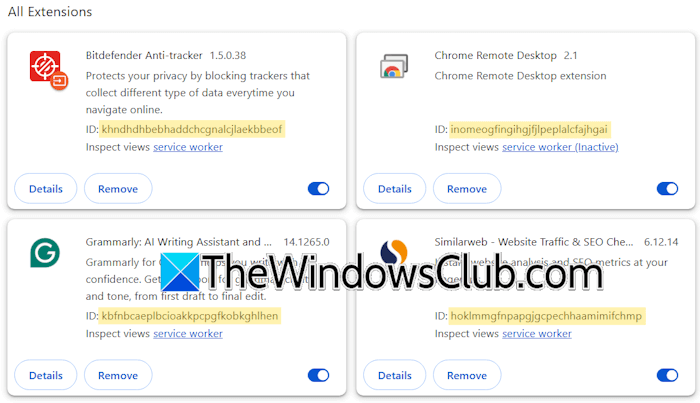
Follow these steps to check if your browser has these extensions:
- Launch Chrome and Edge.
- Click on the three dots on the top right side and select Extensions > Manage Extensions.
- Turn on the Developer Mode.
- Copy the ID of each extension and match it with the list available on the Koi’s official blog post. You can use the Ctrl + F (Find) feature.
If you find a malicious extension installed on your browser, remove it immediately. After that, run an antivirus scan on your system.
